1. Create a Signal Strategy with TradingView Alerts
Step 1: Go to Signal Trading
Log in to CoinW and click Bots to enter the bot marketplace.
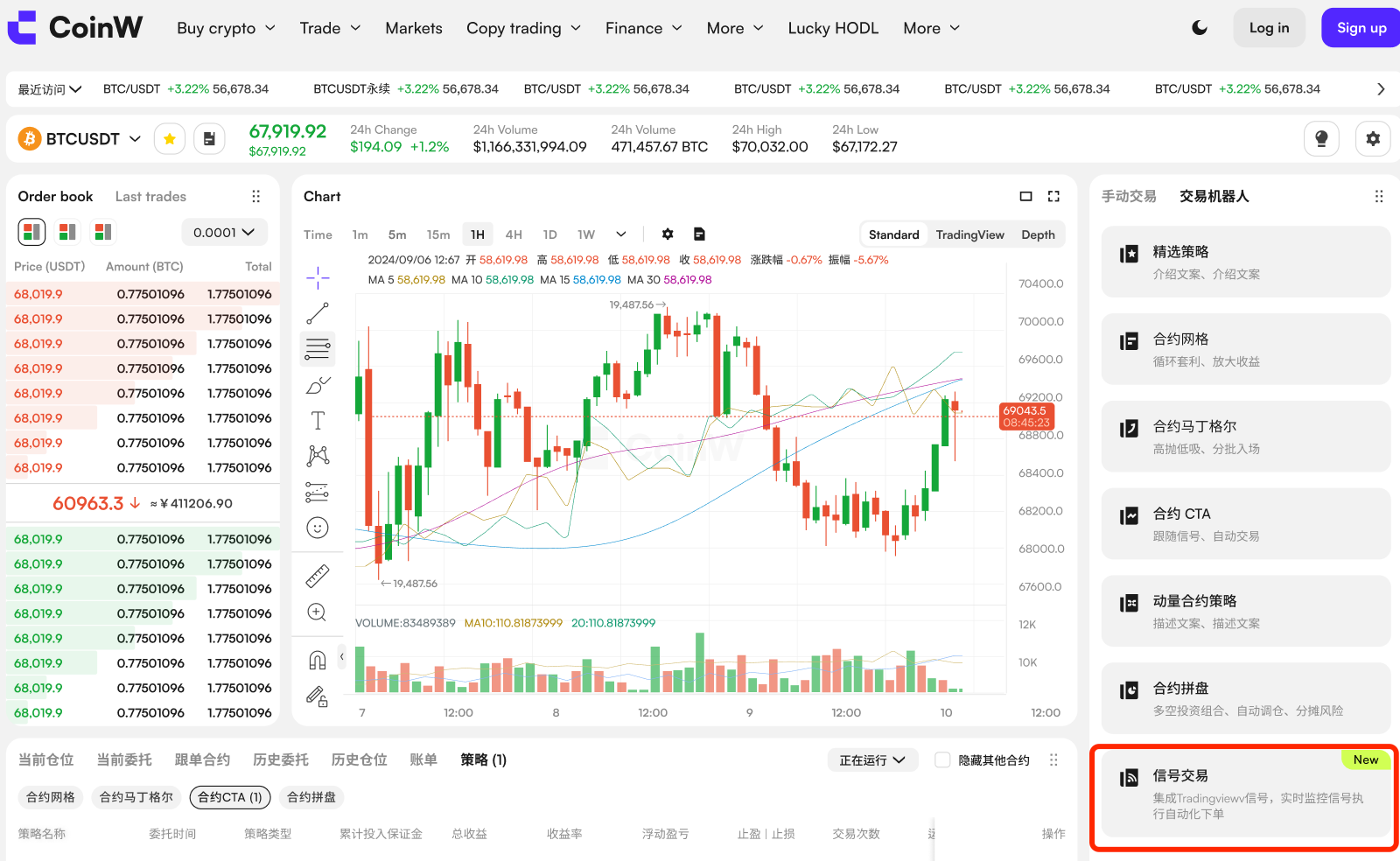
On the USDT-margined futures page, select a trading pair, then go to Tools > Signal Trading.
Step 2: Create a Signal
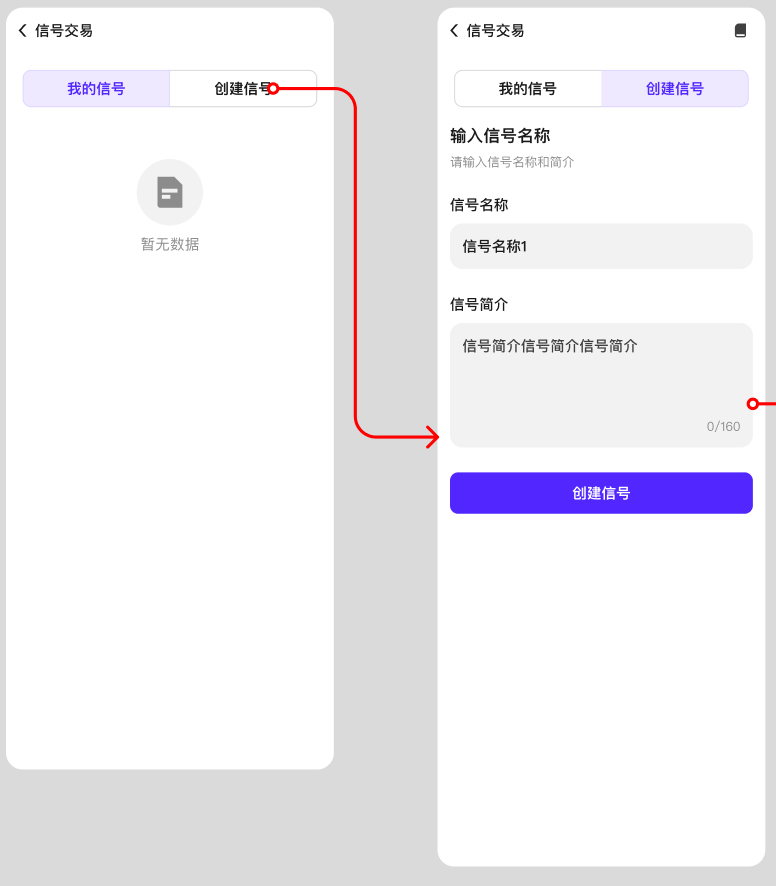
Click “Create Signal”, enter a name and description, then click “Create Signal”.
Step 3: Get Webhook Info
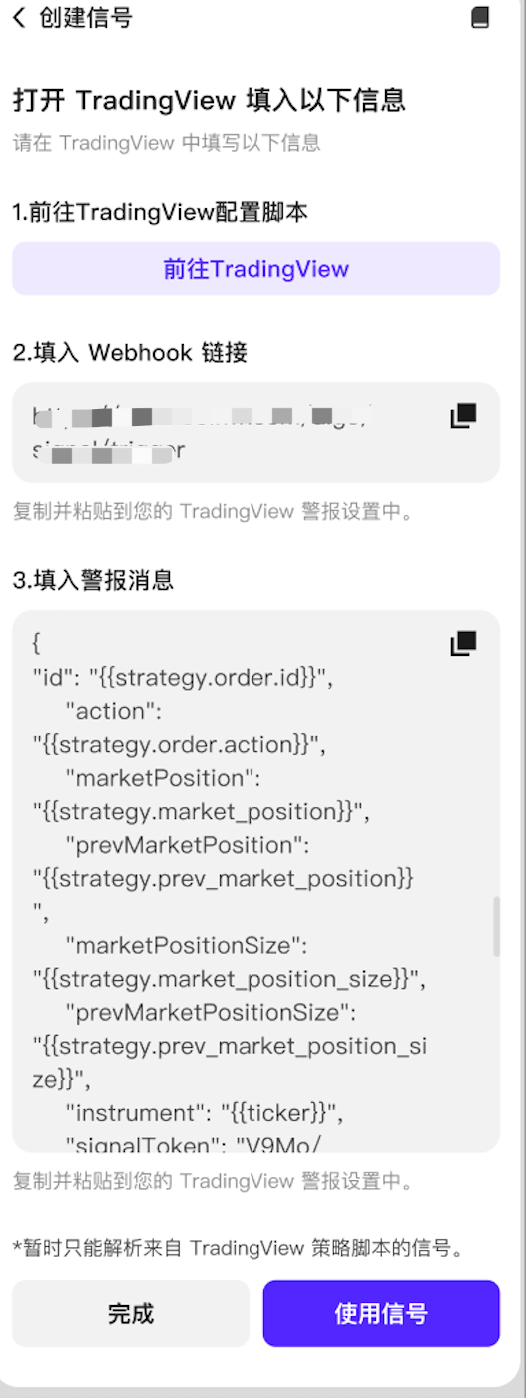
After the signal is created, the system will generate a Webhook URL and an alert message (TradingView strategy format).
Save the information and go to TradingView to enter the URL and alert message. Please note that only strategy scripts are supported, indicators are not supported.
Step 4: Set Up on TradingView
Log into TradingView and select your preferred trading pair.
Notice: The following takes USDT-margined perpetual contract as an example.
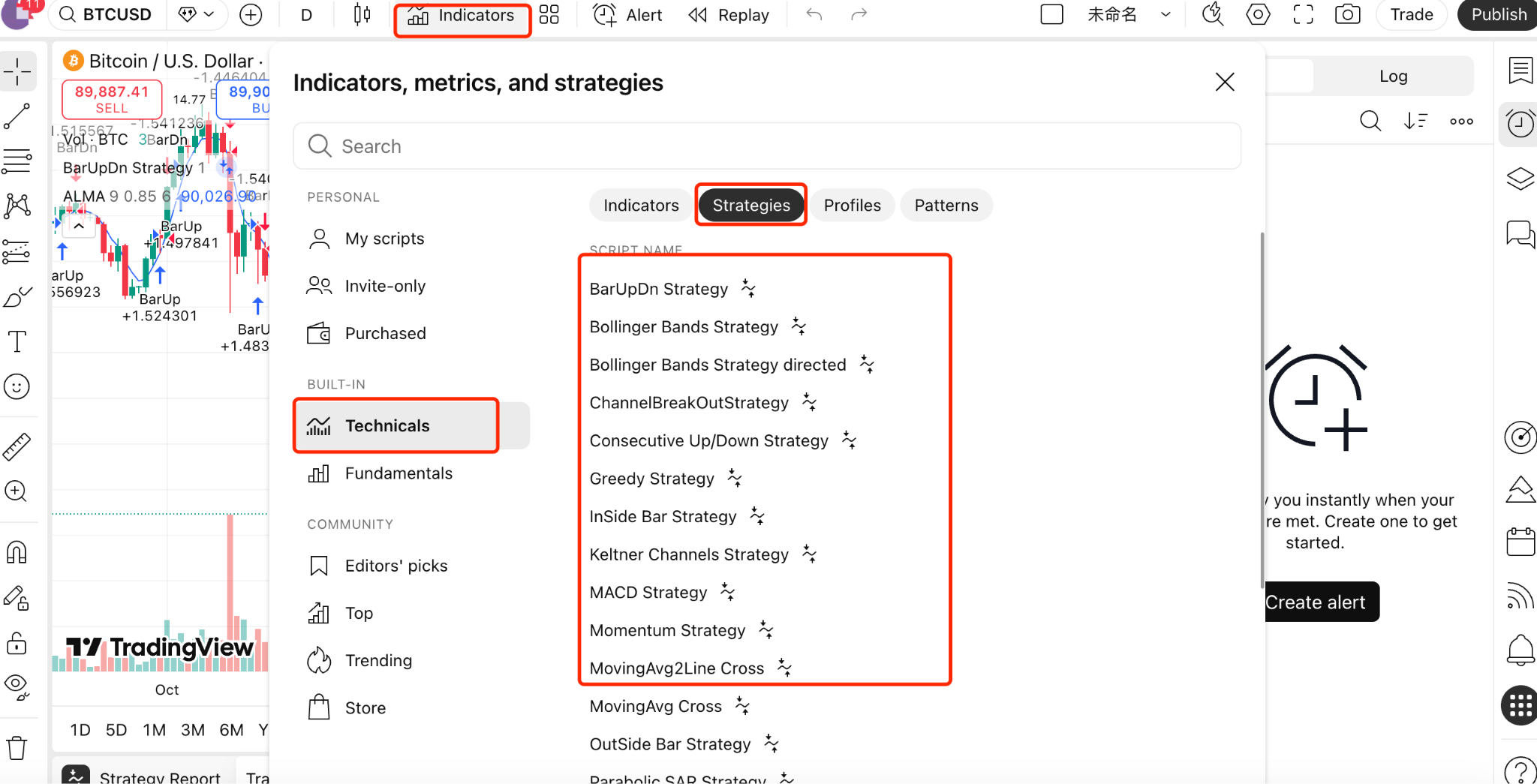
Load your strategy under Indicators > Technicals, then set data source to CoinW.
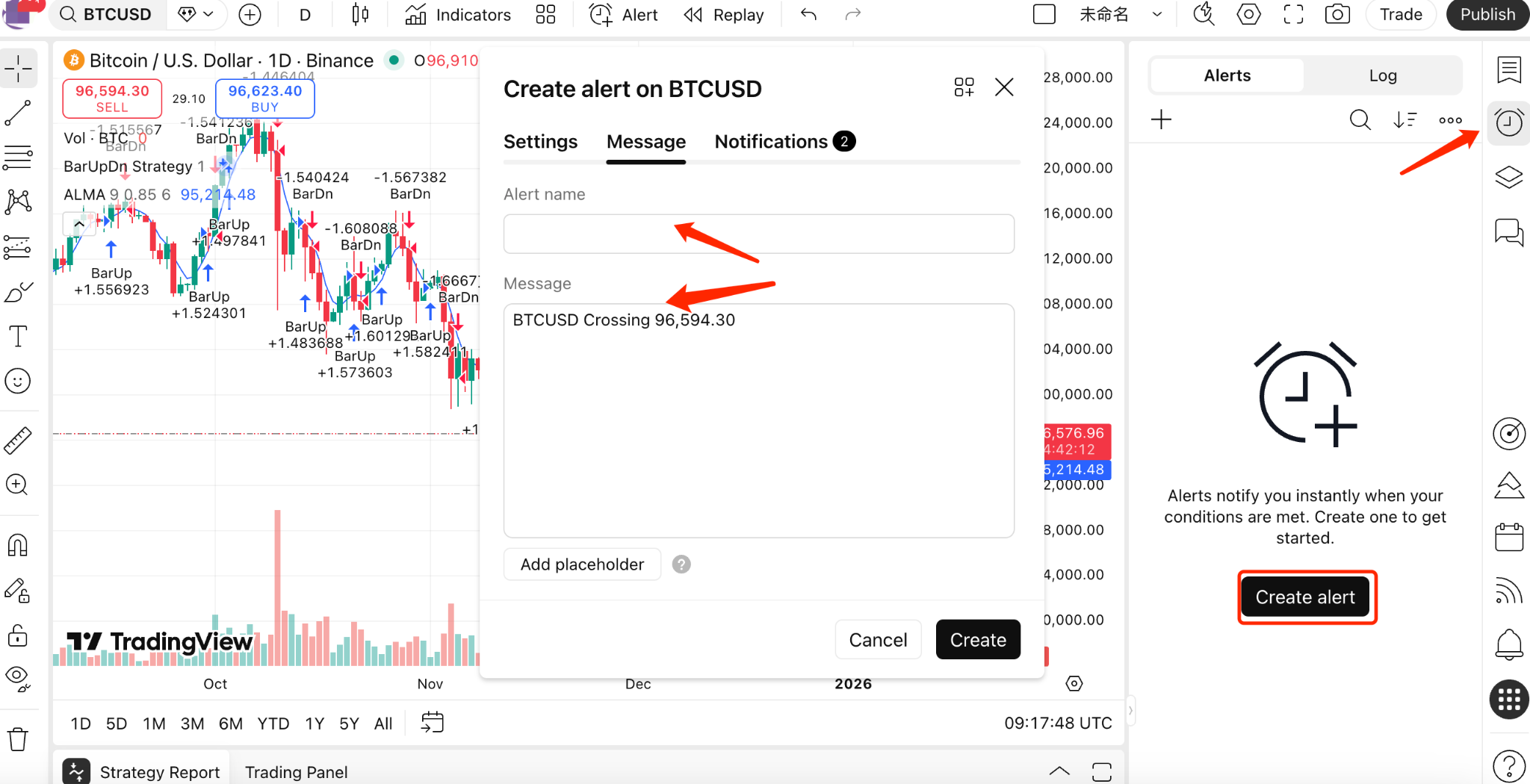
Click Alerts > Create Alerts, and enter the alert message from CoinW in Messages. Make sure the messages match the Webhook message.
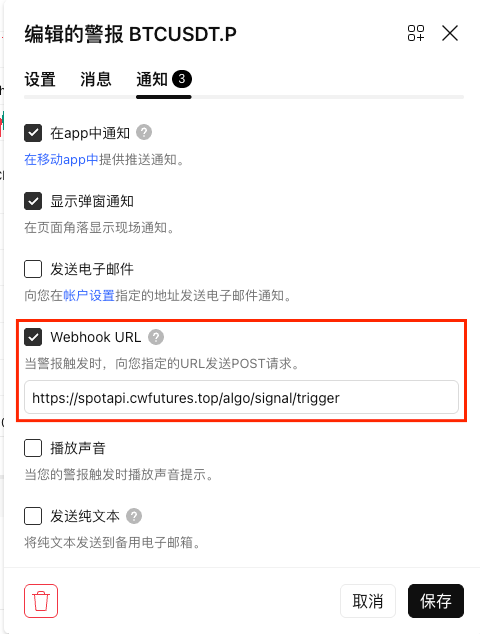
Under Notifications, paste the Webhook URL into Webhook URL as shown below, then click the “Save” button. (Example, BTCUSDT.P)
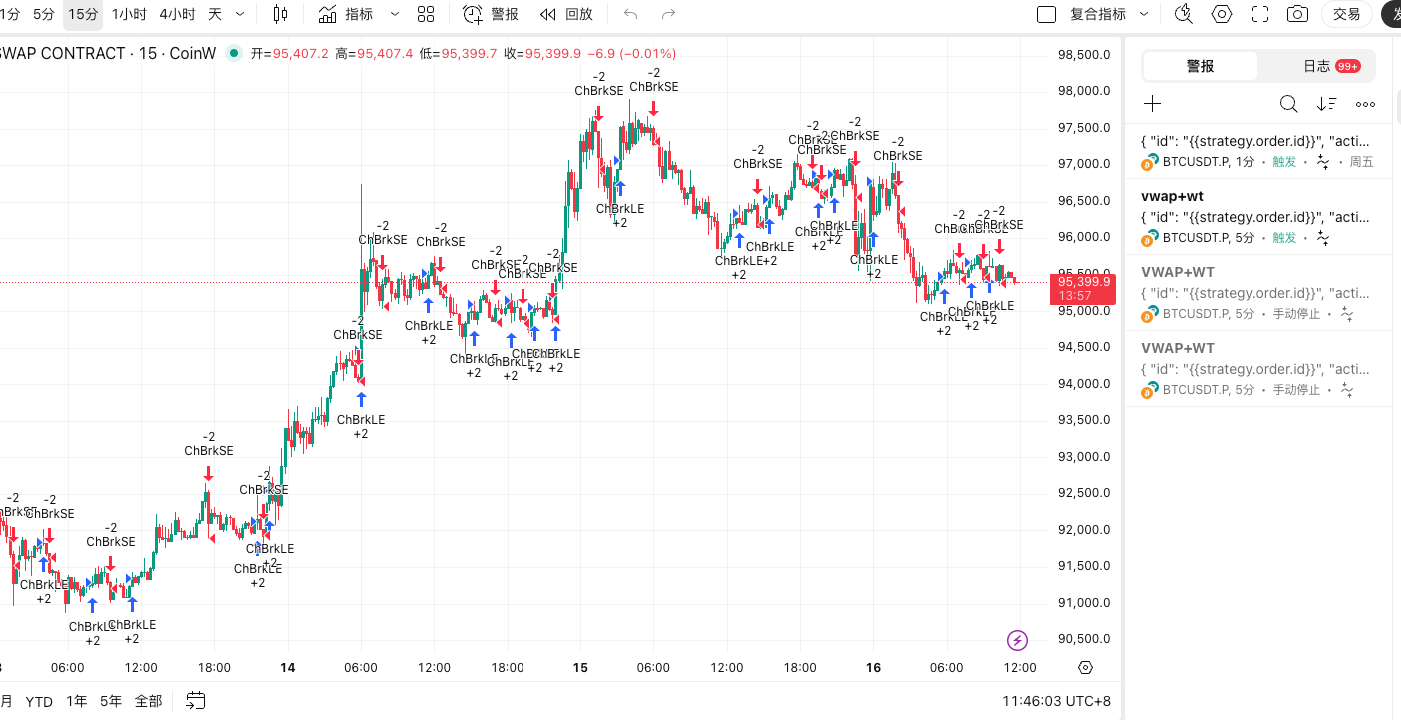
Once a signal is created, you can view the alerts and trigger logs in the Alert panel.
Step 5: Use Signals
1. Select a Signal and Contract
On the futures trading page, go to Bots > Signal Trading, then click My Signals.
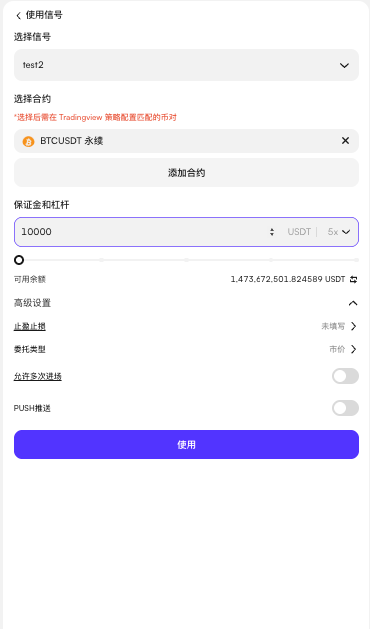
Select your preferred TradingView signal and bind it to the corresponding futures trading pair (e.g. BTCUSDT Perpetual).
Note: Make sure the trading pair you selected on CoinW matches the trading pair used in your TradingView strategy.
2. Advanced Settings
Take Profit & Stop Loss (Position Mode)
This feature applies to the entire position rather than a single order.
The setting will help you lock in profits and limit potential losses. Even when you are away from the market, the system will automatically close the position once the preset conditions are met.
Order Types: Market Order vs. Limit Order
Market Order: Prioritizes execution speed. Once a signal is triggered, the order will be placed immediately to help avoid missing trading opportunities.
Limit Order + Deviation: Prioritizes execution price.
Deviation is designed to help prevent limit orders from failing to execute during rapid market fluctuations. By setting a deviation (e.g. 0.5%), you allow the system to execute the order as long as the market price remains within 0.5% of your target price. This can significantly improve execution rates while helping avoid excessive slippage during volatile market conditions. A deviation of 0 means the order will only execute at the exact specified limit price.
3. Real-Time Notifications
Key Push Notification Scenarios (by priority)
Scenario 1: Signal Trigger Notification — “Trading Opportunity Detected”
When your TradingView strategy meets the trigger conditions and sends a signal, your phone will immediately receive a push notification. Even if you are not actively monitoring the market, you will still know when your strategy has identified a trading opportunity.
For detailed signal alert rules, please refer to the Signal Trading Alert Specifications.
2. FAQ
Q1: What is Webhook?
A Webhook is a method that allows TradingView to send real-time data directly to CoinW. When predefined conditions set on TradingView are met, it will automatically trigger orders on CoinW.
Q2: What are the requirements?
A TradingView Pro, Pro+, or Premium account is required, as Webhook is only available on these plans.
The trading pair must be listed and supported on CoinW.
Supports both one-way mode.
Q3: Which contracts are supported?
This feature currently only supports USDT-margined contracts.
Q4: How many signal strategies can I create?
Each user can create up to 20 signal strategies.
Q5: I have no coding experience. Can I still use this feature?
Absolutely. Although you may see JSON code, it is automatically generated by the system. You only need to select a signal on our platform and copy and paste the generated URL and code into the TradingView alert settings. The entire process is as simple as copy and paste.
Q6: Does the platform support niche trading pairs?
Yes. Our signal trading feature currently supports all available futures trading pairs on the platform. As long as the futures trading pair is listed on CoinW, you can select it and enable signal trading.
Q7: What is “Limit Order Deviation”? What value is recommended?
Limit order deviation is designed to help prevent orders from failing to execute during rapid market fluctuations. For example, setting a deviation of 0.5% means the order can be executed within a certain price range around your target price. For beginners, it is recommended to use a small deviation percentage or set it to 0 to balance execution success rate and trading costs.
Q8: I configured a signal, but no order was placed. Where can I check the reason?
Please check the Signal History page. The system will record all details such as the signal reception time, whether the order was successfully placed, and the specific reason for any failure (e.g. insufficient available margin) there. By clicking Signal Details, you can also view the original instruction content sent from TradingView.
Q9: After enabling Push notifications, do I still need to monitor my phone constantly?
No. Push notifications are event-driven. Your phone will only receive notifications when a signal is triggered, an order is successfully placed, or an error occurs (such as insufficient balance). If there are no notifications, it means the system is running normally according to your strategy settings.
Q10: How can I troubleshoot signals that are not running as expected?
If your signal does not run as expected, please follow the steps below to troubleshoot the issue.
Step 1: Check the Alert Logs on TradingView. First, review the alert logs on TradingView and confirm that the expected alert was successfully triggered.
Step 2: Check Signal History on CoinW. If the TradingView alert was triggered successfully, please check the signal records for your strategy on CoinW. Refresh the page and look for records corresponding to the alert trigger time.
Step 3: Verify the TradingView Alert Configuration. If no corresponding signal record appears in the event history, please verify your alert configuration on TradingView.
Please check the following potential issues:
1. Webhook URL. Make sure the Webhook URL entered in the TradingView alert settings exactly matches the URL provided in the CoinW signal configuration page.
2. Signal Code (signalToken). Ensure that the signal code field in the alert message is entered correctly. The signal code in the alert configuration must exactly match the signal code provided in the CoinW signal configuration page.
1. Create a Signal Strategy with TradingView Alerts
Step 1: Go to Signal Trading
Log in to CoinW and click Bots to enter the bot marketplace.
On the USDT-margined futures page, select a trading pair, then go to Tools > Signal Trading.
Step 2: Create a Signal
Click “Create Signal”, enter a name and description, then click “Create Signal”.
Step 3: Get Webhook Info
After the signal is created, the system will generate a Webhook URL and an alert message (TradingView strategy format).
Save the information and go to TradingView to enter the URL and alert message. Please note that only strategy scripts are supported, indicators are not supported.
Step 4: Set Up on TradingView
Log into TradingView and select your preferred trading pair.
Notice: The following takes USDT-margined perpetual contract as an example.
Load your strategy under Indicators > Technicals, then set data source to CoinW.
Click Alerts > Create Alerts, and enter the alert message from CoinW in Messages. Make sure the messages match the Webhook message.
Under Notifications, paste the Webhook URL into Webhook URL as shown below, then click the “Save” button. (Example, BTCUSDT.P)
Once a signal is created, you can view the alerts and trigger logs in the Alert panel.
Step 5: Use Signals
1. Select a Signal and Contract
On the futures trading page, go to Bots > Signal Trading, then click My Signals.
Select your preferred TradingView signal and bind it to the corresponding futures trading pair (e.g. BTCUSDT Perpetual).
Note: Make sure the trading pair you selected on CoinW matches the trading pair used in your TradingView strategy.
2. Advanced Settings
Take Profit & Stop Loss (Position Mode)
This feature applies to the entire position rather than a single order.
The setting will help you lock in profits and limit potential losses. Even when you are away from the market, the system will automatically close the position once the preset conditions are met.
Order Types: Market Order vs. Limit Order
Market Order: Prioritizes execution speed. Once a signal is triggered, the order will be placed immediately to help avoid missing trading opportunities.
Limit Order + Deviation: Prioritizes execution price.
Deviation is designed to help prevent limit orders from failing to execute during rapid market fluctuations. By setting a deviation (e.g. 0.5%), you allow the system to execute the order as long as the market price remains within 0.5% of your target price. This can significantly improve execution rates while helping avoid excessive slippage during volatile market conditions. A deviation of 0 means the order will only execute at the exact specified limit price.
3. Real-Time Notifications
Key Push Notification Scenarios (by priority)
Scenario 1: Signal Trigger Notification — “Trading Opportunity Detected”
When your TradingView strategy meets the trigger conditions and sends a signal, your phone will immediately receive a push notification. Even if you are not actively monitoring the market, you will still know when your strategy has identified a trading opportunity.
For detailed signal alert rules, please refer to the Signal Trading Alert Specifications.
2. FAQ
Q1: What is Webhook?
A Webhook is a method that allows TradingView to send real-time data directly to CoinW. When predefined conditions set on TradingView are met, it will automatically trigger orders on CoinW.
Q2: What are the requirements?
A TradingView Pro, Pro+, or Premium account is required, as Webhook is only available on these plans.
The trading pair must be listed and supported on CoinW.
Supports both one-way mode.
Q3: Which contracts are supported?
This feature currently only supports USDT-margined contracts.
Q4: How many signal strategies can I create?
Each user can create up to 20 signal strategies.
Q5: I have no coding experience. Can I still use this feature?
Absolutely. Although you may see JSON code, it is automatically generated by the system. You only need to select a signal on our platform and copy and paste the generated URL and code into the TradingView alert settings. The entire process is as simple as copy and paste.
Q6: Does the platform support niche trading pairs?
Yes. Our signal trading feature currently supports all available futures trading pairs on the platform. As long as the futures trading pair is listed on CoinW, you can select it and enable signal trading.
Q7: What is “Limit Order Deviation”? What value is recommended?
Limit order deviation is designed to help prevent orders from failing to execute during rapid market fluctuations. For example, setting a deviation of 0.5% means the order can be executed within a certain price range around your target price. For beginners, it is recommended to use a small deviation percentage or set it to 0 to balance execution success rate and trading costs.
Q8: I configured a signal, but no order was placed. Where can I check the reason?
Please check the Signal History page. The system will record all details such as the signal reception time, whether the order was successfully placed, and the specific reason for any failure (e.g. insufficient available margin) there. By clicking Signal Details, you can also view the original instruction content sent from TradingView.
Q9: After enabling Push notifications, do I still need to monitor my phone constantly?
No. Push notifications are event-driven. Your phone will only receive notifications when a signal is triggered, an order is successfully placed, or an error occurs (such as insufficient balance). If there are no notifications, it means the system is running normally according to your strategy settings.
Q10: How can I troubleshoot signals that are not running as expected?
If your signal does not run as expected, please follow the steps below to troubleshoot the issue.
Step 1: Check the Alert Logs on TradingView. First, review the alert logs on TradingView and confirm that the expected alert was successfully triggered.
Step 2: Check Signal History on CoinW. If the TradingView alert was triggered successfully, please check the signal records for your strategy on CoinW. Refresh the page and look for records corresponding to the alert trigger time.
Step 3: Verify the TradingView Alert Configuration. If no corresponding signal record appears in the event history, please verify your alert configuration on TradingView.
Please check the following potential issues:
1. Webhook URL. Make sure the Webhook URL entered in the TradingView alert settings exactly matches the URL provided in the CoinW signal configuration page.
2. Signal Code (signalToken). Ensure that the signal code field in the alert message is entered correctly. The signal code in the alert configuration must exactly match the signal code provided in the CoinW signal configuration page.