FAQ
Introduction to Auto-Invest
1. What is Auto-Invest?
Auto-Invest, also known as Dollar-Cost Averaging (DCA), is an investment strategy where a fixed amount is invested in selected assets at regular intervals. It is also a simple long-term investment method and is suitable for users with limited time.
CoinW Auto-Invest is a fully automated investment product that requires minimal manual operation. Users only need to select cryptos and set allocation ratios to start automated investing.
2. How Auto-Invest Works
Auto-Invest is designed to help users invest at regular intervals without manual execution.
-
Funding Source
Auto-Invest will first deduct available USDT from your Spot Account. If the balance is insufficient and Auto-Transfer is enabled, the system will automatically transfer assets from your Funding Account to your Spot Account to complete the investment.
If Auto-Transfer is disabled, or if funds are still insufficient after the transfer, the investment will fail and the system will retry on the next scheduled date.
-
ROI Formula
(Last traded price - Average cost) × Total accumulated amount / Total invested amount
-
Deposit & Withdrawal
Assets purchased through Auto-Invest will be credited to the Earn Account and can be withdrawn at any time.
2. CoinW Research Recommended Portfolio
The Auto-Invest portfolio is a featured part of the CoinW Auto-Invest product. The Research team provides periodic portfolio recommendations to help users get started more easily.
Multi-Sector Coverage
The portfolio includes assets across multiple sectors, including Ethereum 2.0 upgrades, AI, halving-related assets, Layer 2 projects such as Arbitrum, Web3 infrastructure, DeFi leaders, and meme coins You can choose a single sector or combine assets from multiple sectors to build your own portfolio.
Stable Returns with Lower Risk
Each asset in the portfolio is selected through professional valuation, risk assessment, return analysis, and internal review.
Simple for Beginners
If you don’t know how to start or which assets to select, you can begin with the recommended portfolio.
3. How to Use Auto-Invest
Web
Step 1: Check account balance
Before creating an Auto-Invest plan, make sure your Spot Account or Funding Account has sufficient USDT.
Step 2: Create a plan
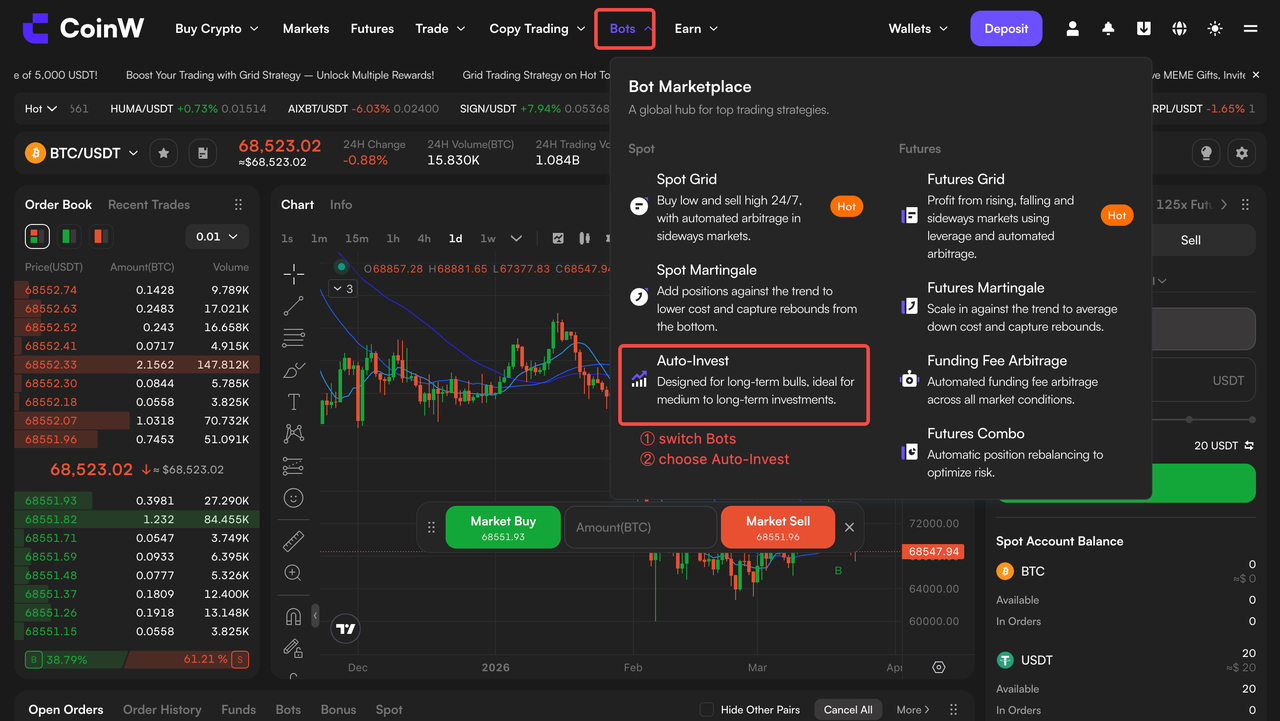
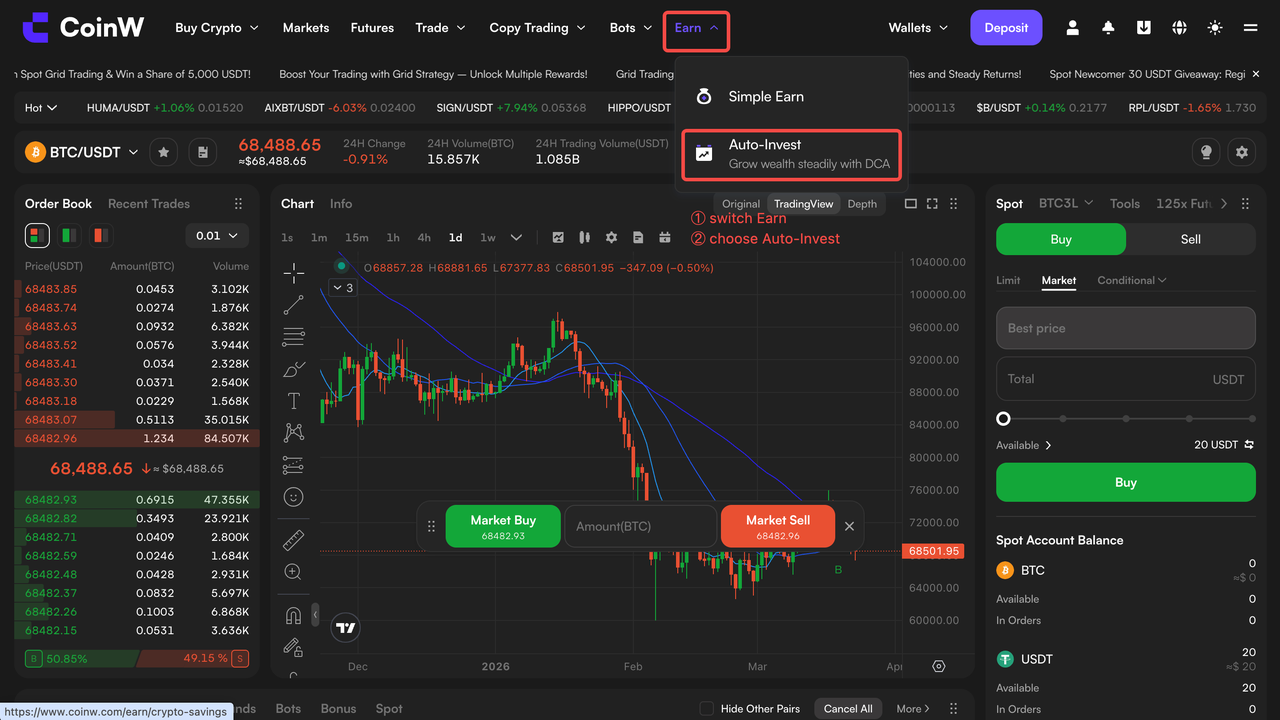
Log in to CoinW Web and go to Strategy/Earn > Auto-Invest.
Read and confirm the Auto-Invest agreement, then click Create Plan
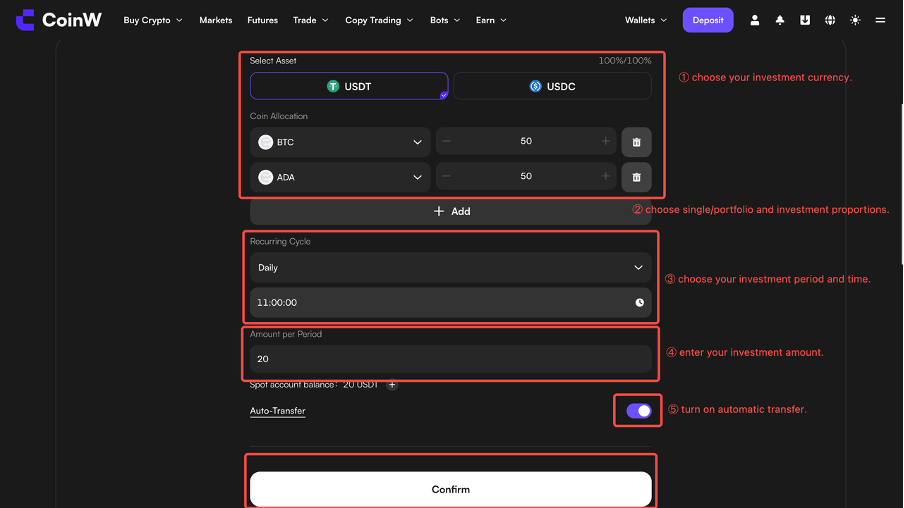
Select the cryptos you want to invest in, then choose either a single asset or up to 5 assets to build a portfolio. Set the allocation percentage for each asset, ensuring the total equals 100%. For portfolios, each asset must have a minimum allocation of 10%. Set the investment amount per period and investment frequency, enable Auto-Transfer, and click Confirm.
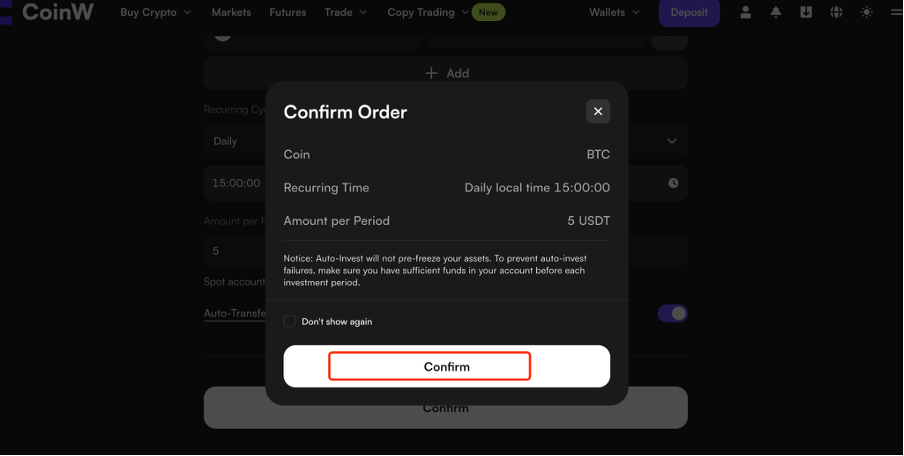
Review the order details and click Confirm.
Step 3: Manage your plan
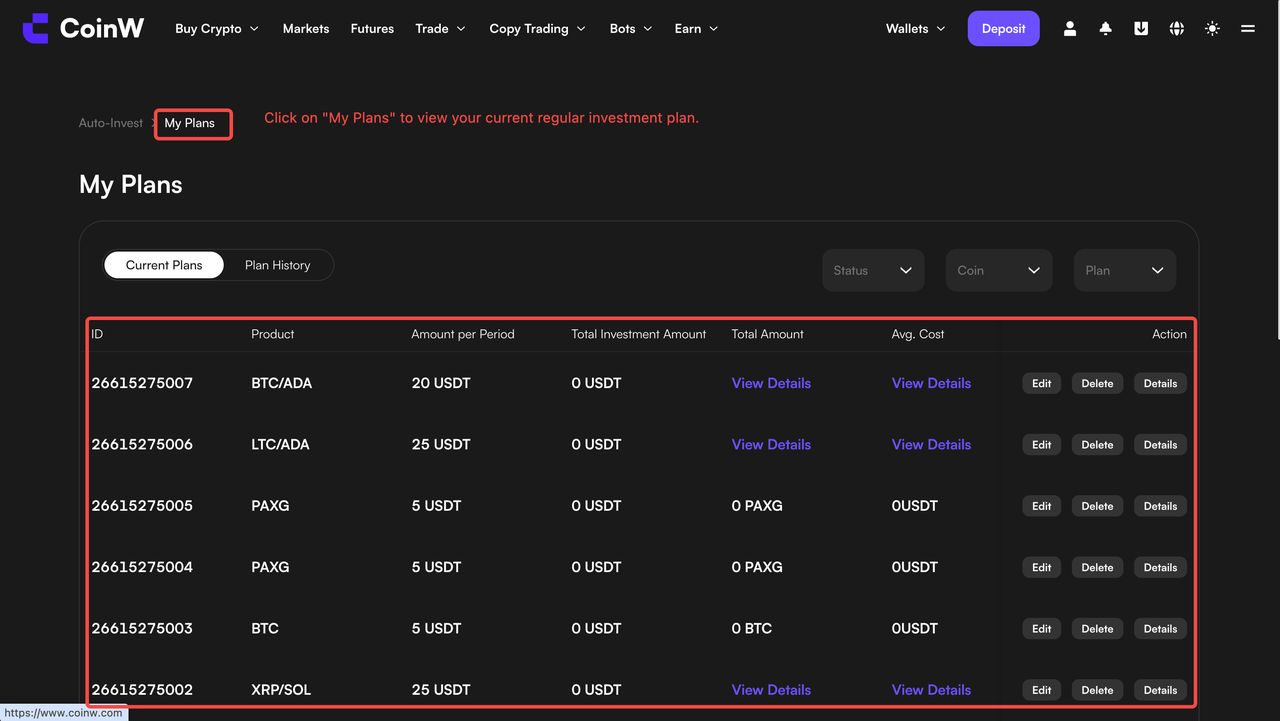
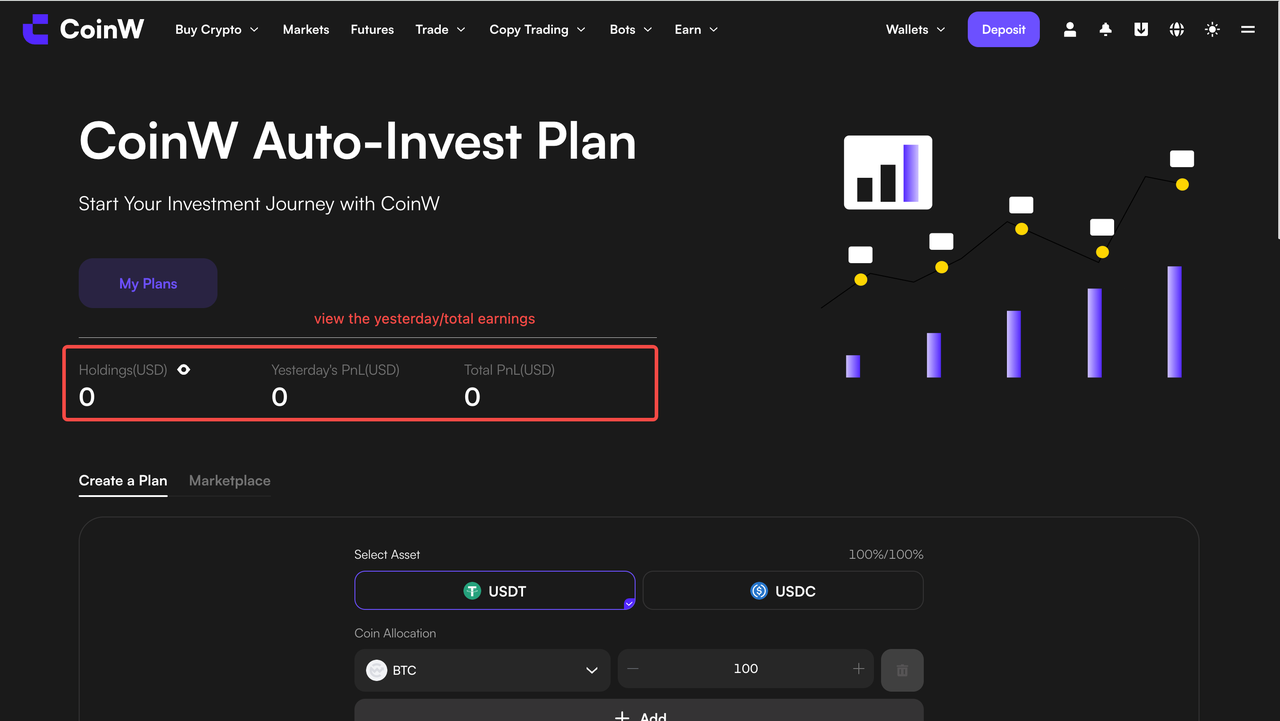
In “My Plans”, you can view your PnL, ROI, and the next scheduled investment date.
Profit calculation
Yesterday’s Earnings = (Total assets on T-1 day - Total assets on T-2 day) - Net inflow on T-1 day
Total Earnings = Σ(current holdings × market price) - Σ(all historical investment costs + trading fees)
2. Edit & Cancellation
To adjust or pause your strategy, you can pause your selected portfolio plan or rebalance it based on market conditions to optimize performance.
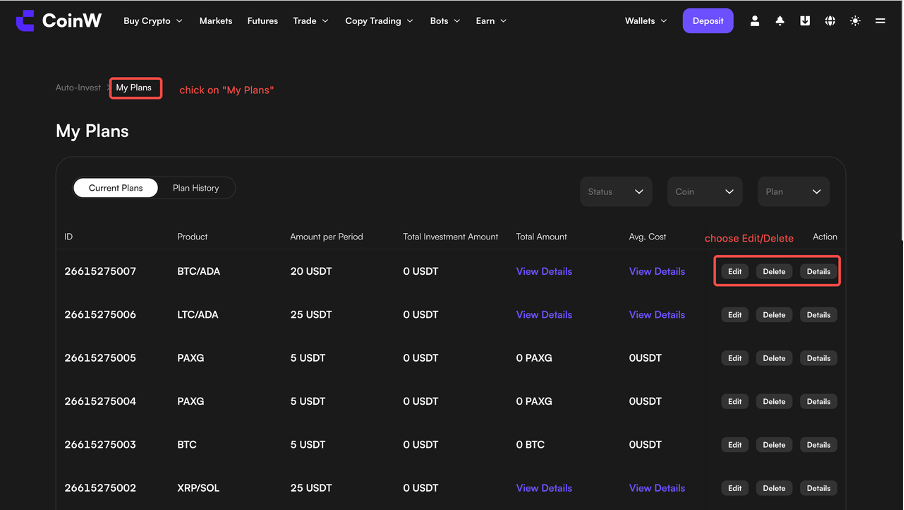
To modify or stop your Auto-Invest plan, go to My Plans and edit or delete it.
App
Step 1: Check account balance
Make sure you have sufficient USDT in your Spot Account or Funding Account before creating a plan.
Step 2: Create a plan
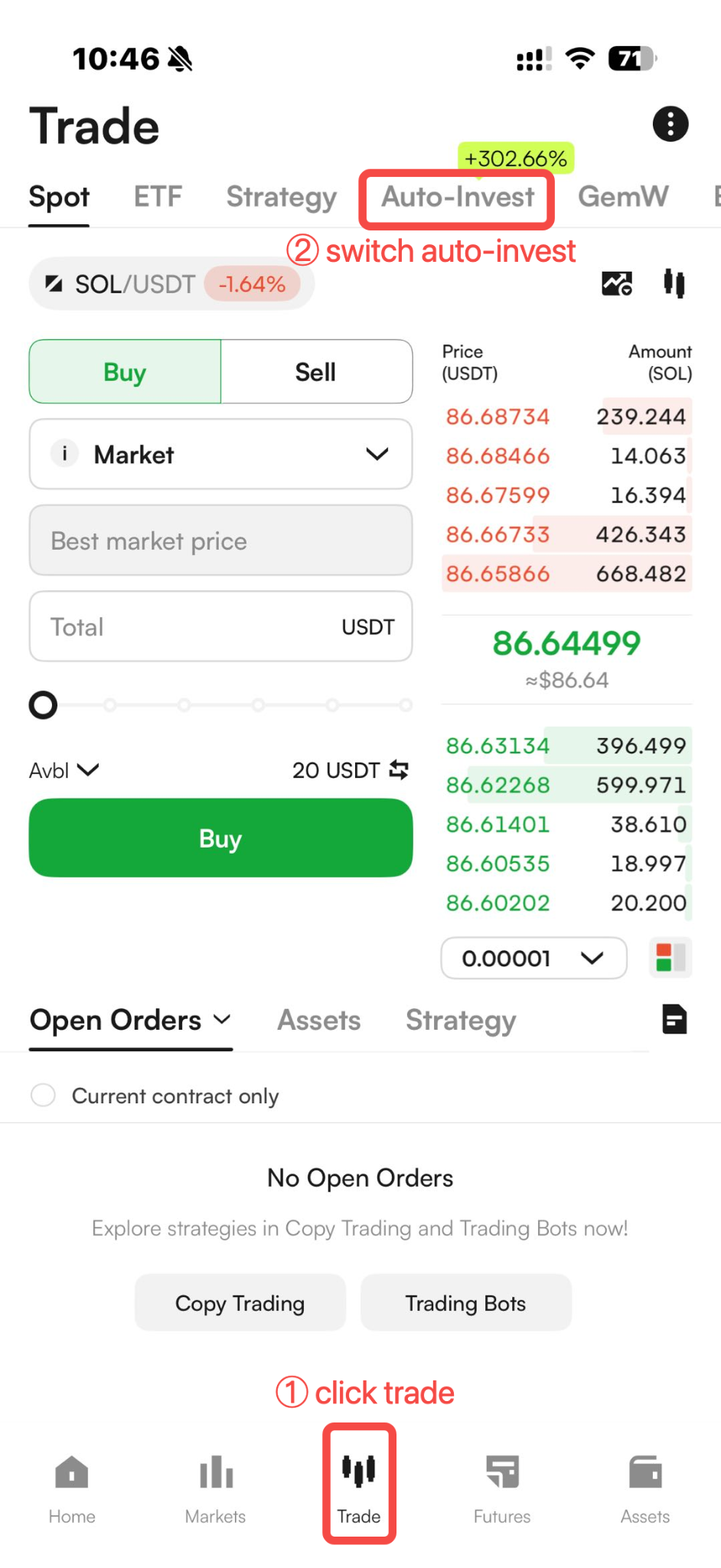
Go to Trade > Auto-Invest, then select a single asset or portfolio.
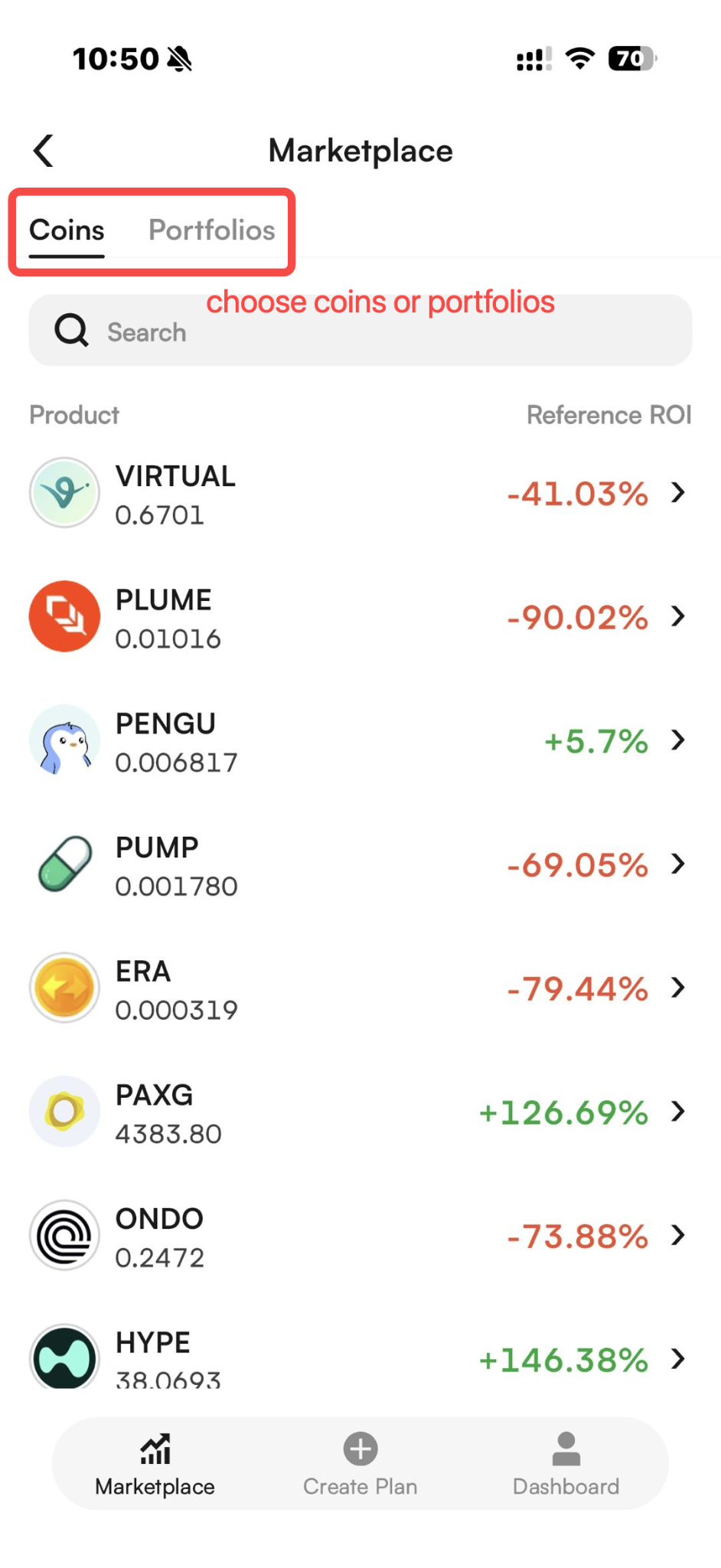
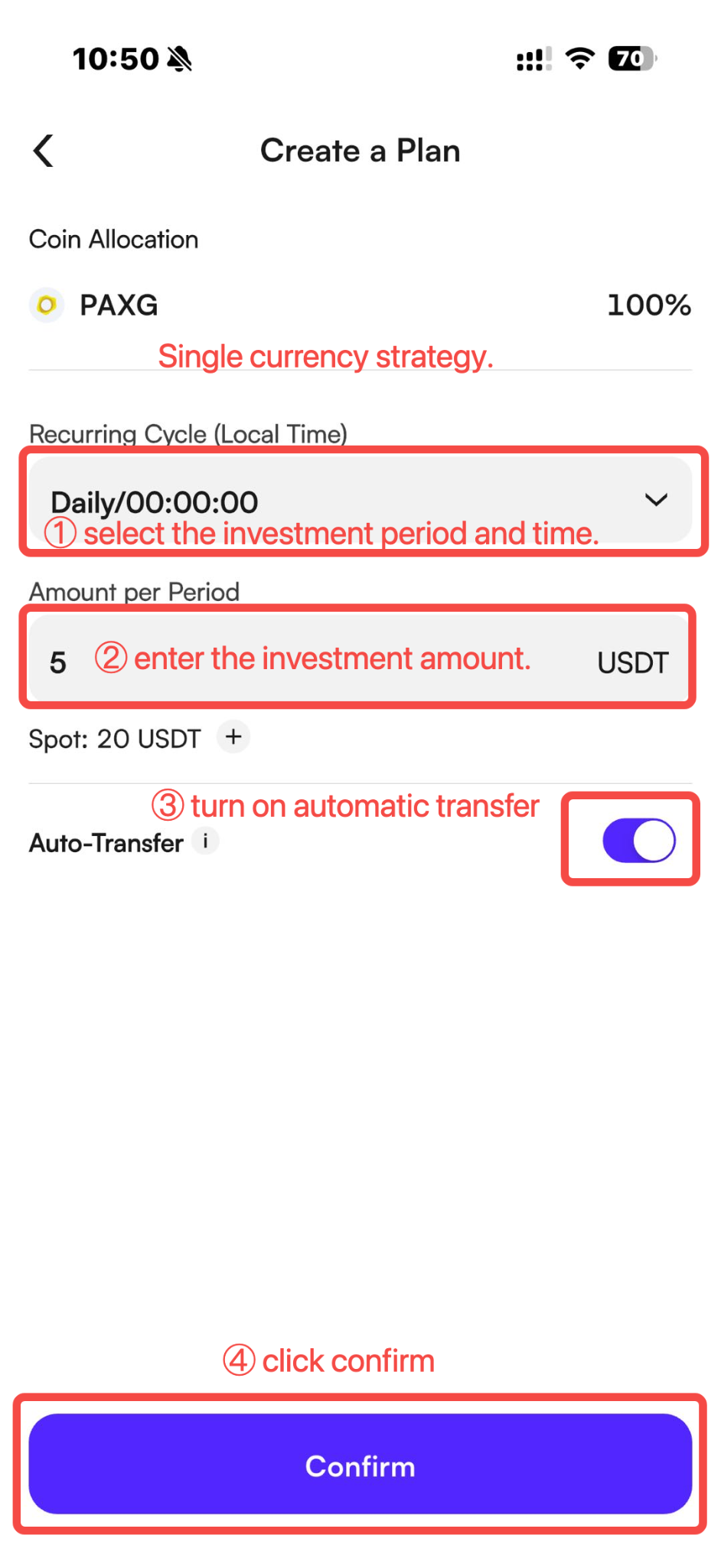
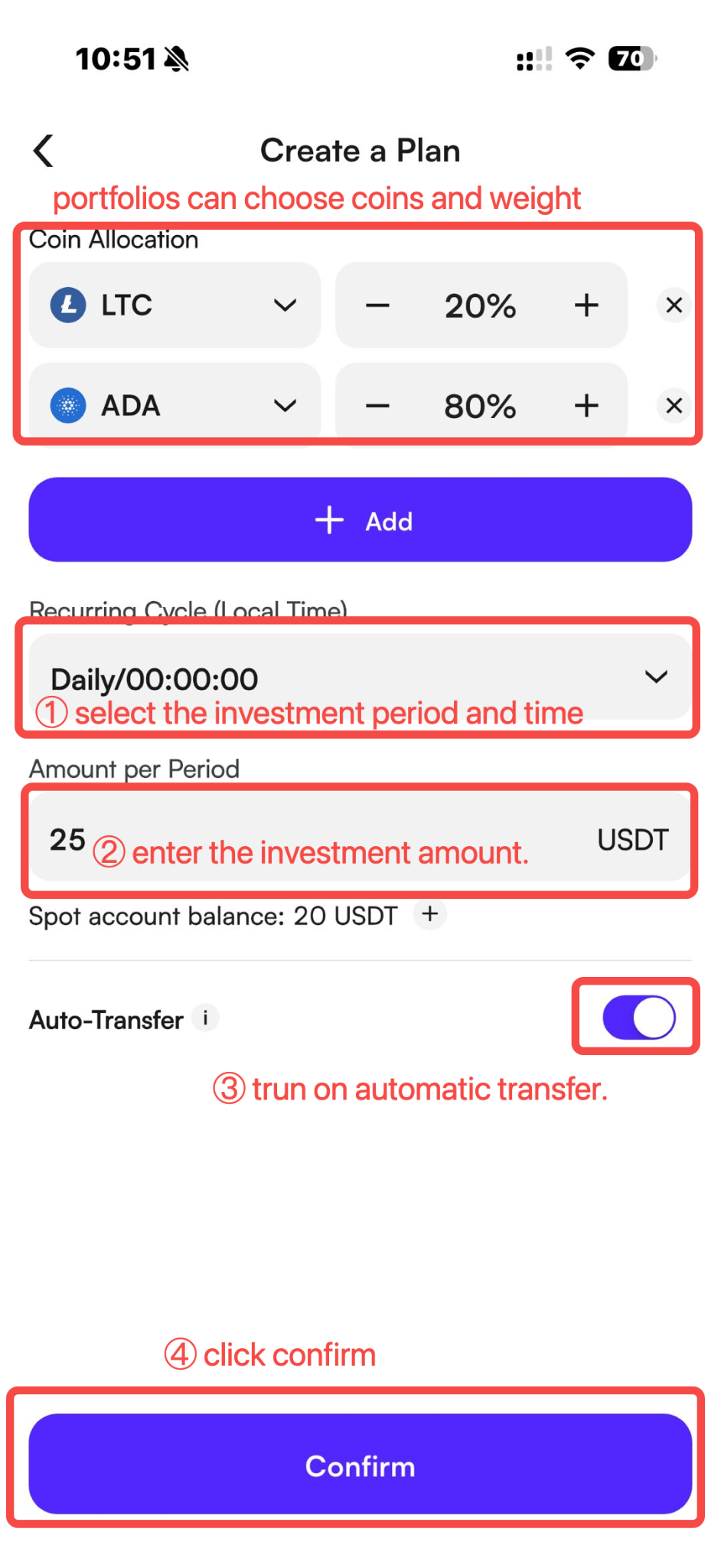
Set the allocation percentage for each asset, ensuring the total equals 100%. For portfolios, each asset must have a minimum allocation of 10%. Set the investment amount per period and investment frequency, enable Auto-Transfer, and click Confirm.
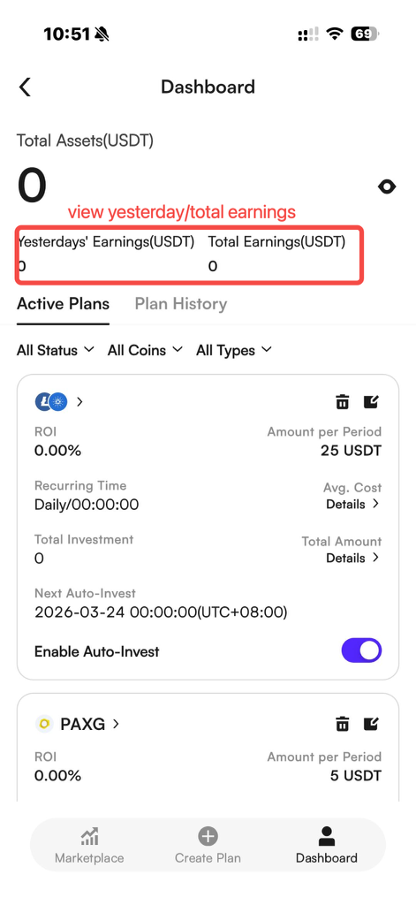
Step 3: View your plan
Introduction to Auto-Invest
1. What is Auto-Invest?
Auto-Invest, also known as Dollar-Cost Averaging (DCA), is an investment strategy where a fixed amount is invested in selected assets at regular intervals. It is also a simple long-term investment method and is suitable for users with limited time.
CoinW Auto-Invest is a fully automated investment product that requires minimal manual operation. Users only need to select cryptos and set allocation ratios to start automated investing.
2. How Auto-Invest Works
Auto-Invest is designed to help users invest at regular intervals without manual execution.
-
Funding Source
Auto-Invest will first deduct available USDT from your Spot Account. If the balance is insufficient and Auto-Transfer is enabled, the system will automatically transfer assets from your Funding Account to your Spot Account to complete the investment.
If Auto-Transfer is disabled, or if funds are still insufficient after the transfer, the investment will fail and the system will retry on the next scheduled date.
-
ROI Formula
(Last traded price - Average cost) × Total accumulated amount / Total invested amount
-
Deposit & Withdrawal
Assets purchased through Auto-Invest will be credited to the Earn Account and can be withdrawn at any time.
2. CoinW Research Recommended Portfolio
The Auto-Invest portfolio is a featured part of the CoinW Auto-Invest product. The Research team provides periodic portfolio recommendations to help users get started more easily.
Multi-Sector Coverage
The portfolio includes assets across multiple sectors, including Ethereum 2.0 upgrades, AI, halving-related assets, Layer 2 projects such as Arbitrum, Web3 infrastructure, DeFi leaders, and meme coins You can choose a single sector or combine assets from multiple sectors to build your own portfolio.
Stable Returns with Lower Risk
Each asset in the portfolio is selected through professional valuation, risk assessment, return analysis, and internal review.
Simple for Beginners
If you don’t know how to start or which assets to select, you can begin with the recommended portfolio.
3. How to Use Auto-Invest
Web
Step 1: Check account balance
Before creating an Auto-Invest plan, make sure your Spot Account or Funding Account has sufficient USDT.
Step 2: Create a plan
Log in to CoinW Web and go to Strategy/Earn > Auto-Invest.
Read and confirm the Auto-Invest agreement, then click Create Plan
Select the cryptos you want to invest in, then choose either a single asset or up to 5 assets to build a portfolio. Set the allocation percentage for each asset, ensuring the total equals 100%. For portfolios, each asset must have a minimum allocation of 10%. Set the investment amount per period and investment frequency, enable Auto-Transfer, and click Confirm.
Review the order details and click Confirm.
Step 3: Manage your plan
In “My Plans”, you can view your PnL, ROI, and the next scheduled investment date.
Profit calculation
Yesterday’s Earnings = (Total assets on T-1 day - Total assets on T-2 day) - Net inflow on T-1 day
Total Earnings = Σ(current holdings × market price) - Σ(all historical investment costs + trading fees)
2. Edit & Cancellation
To adjust or pause your strategy, you can pause your selected portfolio plan or rebalance it based on market conditions to optimize performance.
To modify or stop your Auto-Invest plan, go to My Plans and edit or delete it.
App
Step 1: Check account balance
Make sure you have sufficient USDT in your Spot Account or Funding Account before creating a plan.
Step 2: Create a plan
Go to Trade > Auto-Invest, then select a single asset or portfolio.
Set the allocation percentage for each asset, ensuring the total equals 100%. For portfolios, each asset must have a minimum allocation of 10%. Set the investment amount per period and investment frequency, enable Auto-Transfer, and click Confirm.
Step 3: View your plan